Spring Tech Tip 4: Get Started with EDpuzzle

Image of hand holding a phone. This post will walk you through how to use Edpuzzle in the classroom.
Here at the end, when we’re racing to fit everything in and the students are actively resisting, mixing it up becomes even more important. This post will walk you through how to use Edpuzzle in the classroom.


One of my favorite ways to mix things up is with the video webquest. The video webquest enables students to learn a lot in a short amount of time, and it does not require direct instruction from the teacher–something that quickly gets tiresome for the students–especially in the spring.


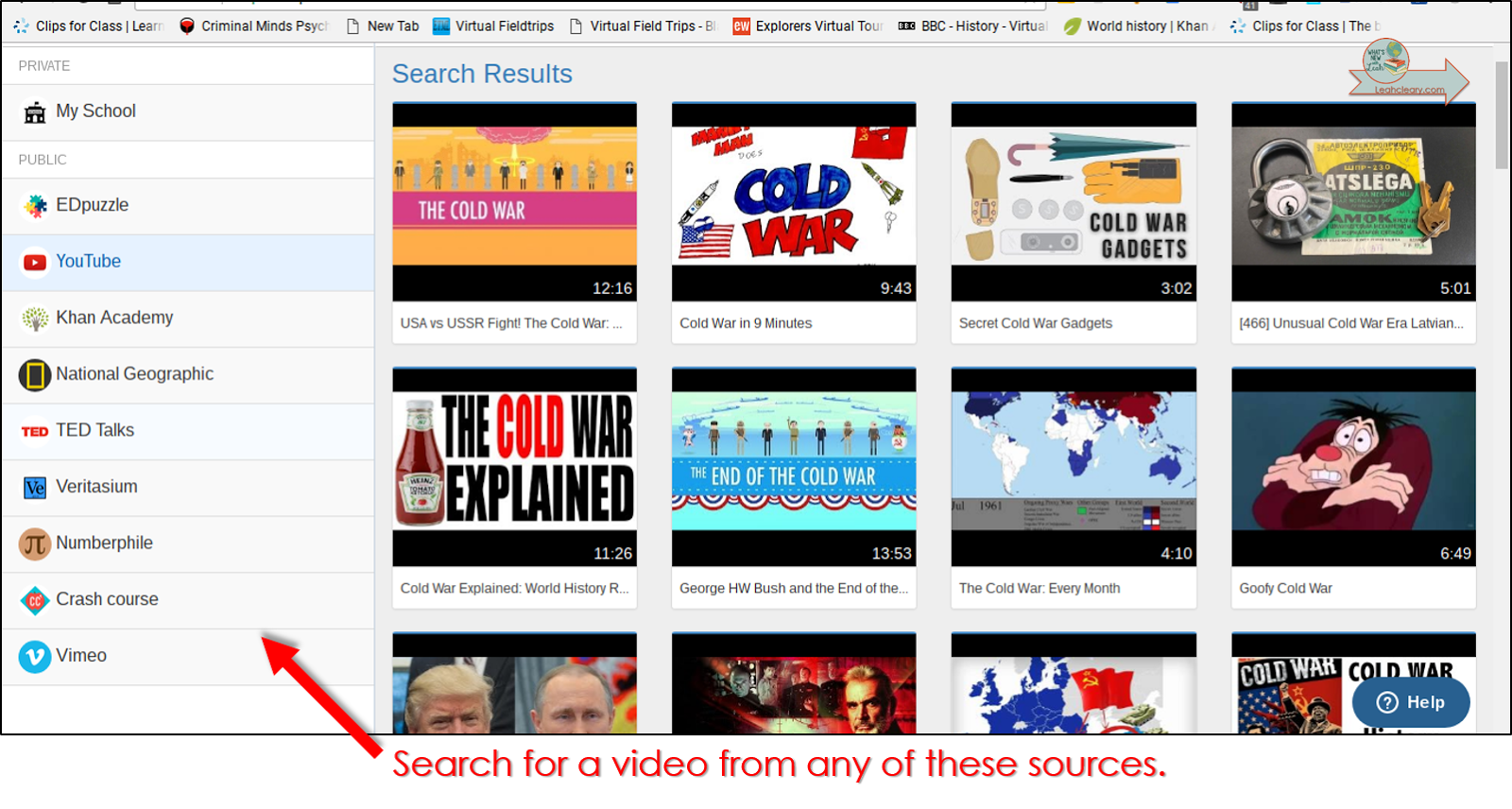
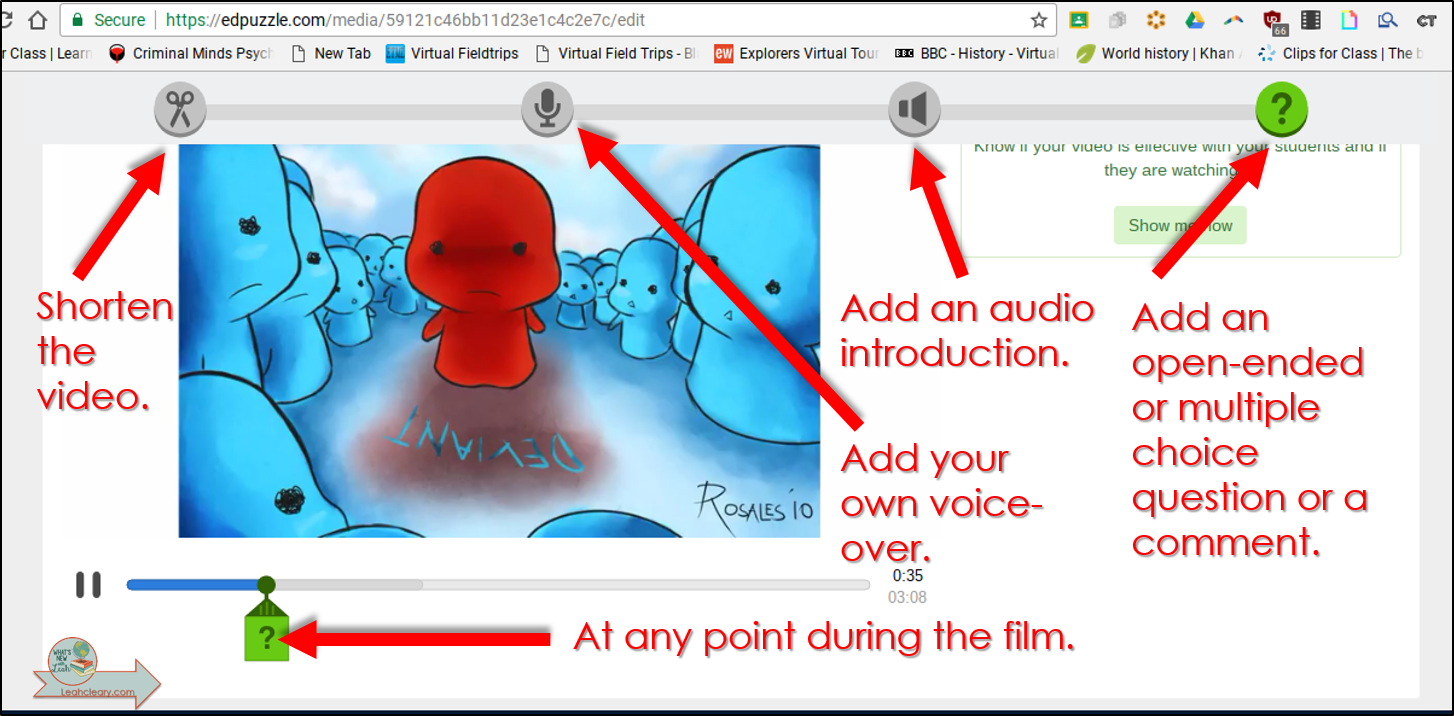
My fourth Spring Tech Tip is all about getting started with EDpuzzle, a free app that integrates with Google Classroom! With EDpuzzle, you can shorten clips, insert questions into the clips, and track whether students actually watch the clips. Click through to learn more and get a tutorial for setting it up!Students watch a series of short film clips and respond to them. It’s a great strategy, but I’ve often thought that it would be great if I could shorten some of the clips I want to use, insert the questions directly into the point of the film where the answers come, and track whether or not students actually view the clip.
 

Effective Strategies on How to Use Edpuzzle in the Classroom


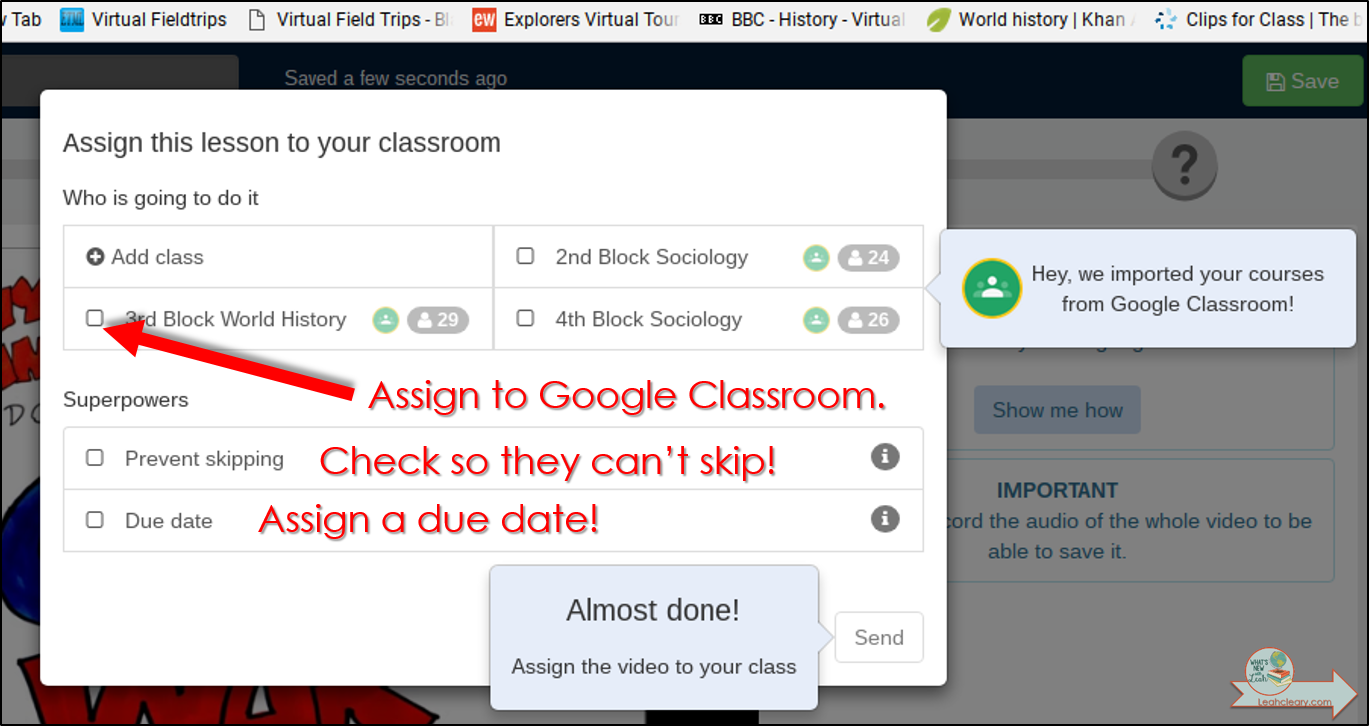
You can easily do all of these things with EDpuzzle, a FREE app that integrates with Google Classroom.
 
There are so many seriously amazing apps out there. I often feel that I am behind on trying them out–it can certainly be overwhelming. I try many, but I have three criteria for actually implementing a new one in my classroom:


  1. It has to be easy to use.


  2. It has to truly save me time.


  3. It has to engage my students.


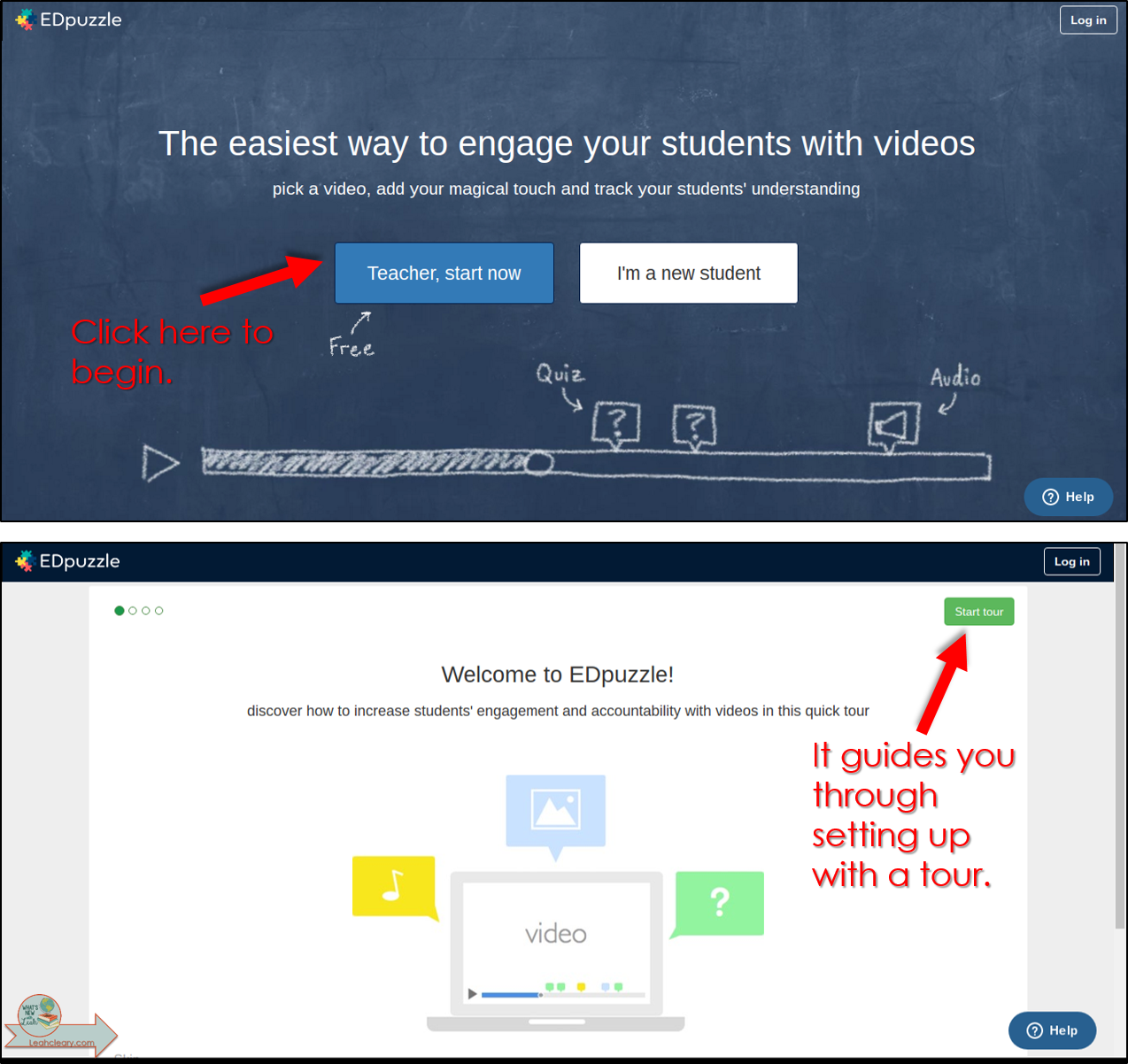
I’m just being honest when I put the first two reasons first–this teaching gig is quite involved. The EDpuzzle app made my cut, and I am really liking it so far. And setting it up is unbelievably simple.

Here’s How to Get Started with EDpuzzle:
 
My fourth Spring Tech Tip is all about getting started with EDpuzzle, a free app that integrates with Google Classroom! With EDpuzzle, you can shorten clips, insert questions into the clips, and track whether students actually watch the clips. Click through to learn more and get a tutorial for setting it up!


I especially like that it keeps track of who watched the film and who didn’t and who submitted on time and who didn’t. So how am I using this?
 

  1. As a bellringer (warm-up)


  2. To review a concept before a quiz.


  3. As a quick assignment to break up a lecture.


  4. As an exit ticket to both review what we learned and to check for understanding.

 
EDpuzzle provides a user-friendly platform for short and engaging formative assessment. I will not give up my video webquests for the more involved lessons (like Trench Warfare or the Holocaust), but EDpuzzle is invaluable for breaking up a long lesson, introducing short bursts of content, and assessing what students have learned so far.


How do you use EDpuzzle? Is there an app you can’t live without? Leave a comment below to let me know. And be sure to check out my other quick and easy Spring Tech Tips:
 

If you use YouTube video clips in your class, then you know how annoying it can be to start and stop at the right places in the video clip. No need to mess with that any longer! Spring Tech Tip 1 is all about how to set custom start and end times on YouTube videos! It couldn't be any easier, so click through to read how.
I'm back with Spring Tech Tip #2, which is all about Super Teacher Tools! This resource allows teachers to customize games for classroom use and has some integration with Google Classroom. Learn some fun ways to use Super Teacher Tools and about how to use it in this blog post!
We're counting down to the end of the school year with spring tech tips, and Spring Tech Tip 3 is to customize your Google Classroom theme! Students can get bored with Google Classroom, but changing the header to pictures of your students working in class helps keep their attention! Click through to read this tutorial.
Did you know that you can type in present mode in PowerPoint? No? Well, you're in luck, because this post gives you a tutorial of how to do that! Click through to read the steps, look at graphics, AND watch a video showing you how to type in present mode in PowerPoint!
Even at the end of the school year, sometimes a lecture can't be avoided in the secondary classroom. However, you can make that lecture more interesting and engaging by using Poll Everywhere. I give a quick tutorial about how to use Poll Everywhere in this blog post.
LearningApps is a free website that teachers can use to engage their students in interactive reviews, games, and quizzes. I'm sharing more about how LearningApps works and how you can get the most of out of it in my new Spring Tech Tip series post!
    Email
    Facebook
    Pinterest
    Twitter

    You might also like...

    Colorful cut paper shapes including a pink circle, purple octagon, and green rectangle connected by yellow arrows on a teal background, representing graphic organizers for high school students and the digital graphic organizers vs paper debate for note catching strategies in the classroom.

    Graphic Organizers for High School Students: Should I Use Tech for This?

    You’ve heard of note-taking. Note-catching is something a little different. And that distinction is at the heart of this post. We’re looking at graphic organizers for high school students, and as part of the Should I Use Tech for This? summer series, we’re asking whether digital graphic organizers or paper serve high school students better, and the answer circles back to the same research that guided our note-taking post way back at the start of the series. We’re also covering the folded paper technique, standard annotation graphic organizers, and the one digital tool, NotebookLM, that does something for note-catching strategies that paper simply cannot replicate.

    Read More »
    A high school student giving a technology-enhanced presentation to classmates, illustrating creative student presentation ideas for high school and transformative technology use in the classroom.

    Student Presentation Ideas for High School: When Technology Genuinely Transforms the Work

    The best student presentations I’ve seen in my classroom came from a Theory of Knowledge class that turned their exhibitions into Saturday Night Live-style comedy sketches. They couldn’t have done it without technology. And they couldn’t have done it with AI alone either. In this post, part of the Should I Use Tech for This? summer series, I’m sharing what transformative student presentation ideas for high school look like, why creative student presentations go so far beyond the standard slideshow, and the one condition that makes technology work for this task rather than against it.

    Read More »
    Image of a magnifying glass over a dictionary for the post "Should I Use Tech for Vocabulary Practice Strategies?"

    Should I Use Tech for Vocabulary Practice Strategies? What I Learned the Hard Way

    I once built an elaborate digital vocabulary practice system, complete with drag-and-drop checkboxes and instructional videos, and I was so proud of it that I started selling it. It was a complete waste of everyone’s time. In this post, part of the Should I Use Tech for This? summer series, I’m sharing what that failure taught me about vocabulary practice strategies, why digital vocabulary tools for teachers shine at the surface level and fall flat at the deep and transfer levels, and how Quizlet, Quiz-Quiz-Trade, and a stack of laminated task cards all earned a permanent place in my vocabulary instruction for high school students.

    Read More »


    Welcome! Stay a while and browse classroom-tested tips, strategies, and resources that will take your teaching to the next level!

    Learn More

    Want Access To The Free Resource library?

    Get access to 20+ classroom-tested resources!