Tips to Simplify Remote Learning

I'm going to make this a quick post, but I'll share what I hope are helpful ideas. I'll follow technology suggestions with workarounds when I can. None of them will be perfect, obviously. A device of some kind will be necessary, even without wifi. So we have to be flexible with due dates and understanding our students' limitations.

This was not a post I had intended to write, but here we all are. Many schools across the nation are closing indefinitely–mine among them. My system is moving to remote learning. We are fortunately 1:1, but this is not the case for every school, and students everywhere don’t all have equal wifi access. This seems like a good time to talk about tips to simplify remote learning.

I’m going to make this a quick post, but I’ll share what I hope are helpful ideas. I’ll follow technology suggestions with workarounds when I can. None of them will be perfect, obviously. A device of some kind will be necessary, even without wifi. So we have to be flexible with due dates and understanding of our students’ limitations.

Tip 1: Establish a Line of Communication

I sent out an email blast through Infinite Campus to students and parents to let them know that they can email me at anytime. I also set up a permanent Google Meet Link that I shared with them and established office hours of Mon.-Fri. from 10:30 AM to 12:00 PM. It’s helpful that this is my system’s policy. My hope is that even if students cannot join the Meet, they will have access to email occasionally.
Since Google Meet and Google Hangouts have merged, it is no longer possible to create a permanent link to share within Meet, but there is a simple workaround:
1. Go to Google Calendars, and click on a date.
2. Select “Add Rooms, Locations, or Conferencing.”
3. Select “Add Conferencing.” Then select “Add Hangouts Meet.”
4. Click “More Options.”
5. Select “Repeat Weekly (Monday through Friday).
6. Change the date at the top for as long as you want the link to last.
I'm going to make this a quick post, but I'll share what I hope are helpful ideas. I'll follow technology suggestions with workarounds when I can. None of them will be perfect, obviously. A device of some kind will be necessary, even without wifi. So we have to be flexible with due dates and understanding our students' limitations.
7. Go to your Google Grid.
8. Select the Google Meet App.
9. Select “Use a Meeting Code.”
10. Copy and paste the URL from Calendars. Delete google.meet.com/. What’s left is your meeting code.
11. Students will follow the link and request to join. You will click to let them in.
I'm going to make this a quick post, but I'll share what I hope are helpful ideas. I'll follow technology suggestions with workarounds when I can. None of them will be perfect, obviously. A device of some kind will be necessary, even without wifi. So we have to be flexible with due dates and understanding our students' limitations.
A reminder about video chats. Ensure that your camera is turned off, and instruct your students to do the same. This is a FERPA issue.

Tip 2: Design Lessons with Simplicity in Mind

Make the learning targets clear, and pare them down to the bare minimum. Make the lessons easy to find and link or provide everything in one place. I put mine on the first page of our Learning Management System (LMS) platform. If your school doesn’t have one, you can email or make use of Google Classroom.
This is what my world history lesson for this week looks like:
I'm going to make this a quick post, but I'll share what I hope are helpful ideas. I'll follow technology suggestions with workarounds when I can. None of them will be perfect, obviously. A device of some kind will be necessary, even without wifi. So we have to be flexible with due dates and understanding our students' limitations.

Tip 3: Don’t Put Assessments Off

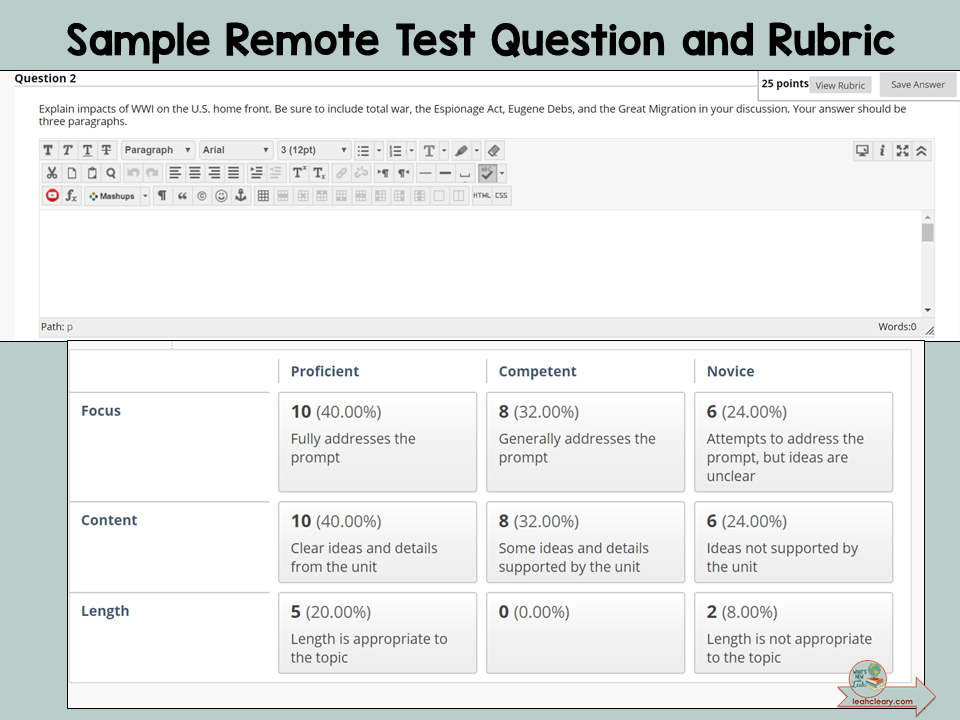
I’m giving short essay assessments while we are out. Google Classroom enables you to turn on an “Originality Report” option. I’m using a program in Blackboard (my system’s LMS) called Lockdown Browser to prevent copying and pasting.
Here’s a sample short essay question for US history:
I'm going to make this a quick post, but I'll share what I hope are helpful ideas. I'll follow technology suggestions with workarounds when I can. None of them will be perfect, obviously. A device of some kind will be necessary, even without wifi. So we have to be flexible with due dates and understanding our students' limitations.

Tip 4: Accept Handwritten Assignments When Students Return

I'm going to make this a quick post, but I'll share what I hope are helpful ideas. I'll follow technology suggestions with workarounds when I can. None of them will be perfect, obviously. A device of some kind will be necessary, even without wifi. So we have to be flexible with due dates and understanding our students' limitations.If students do not have internet access and you are 1:1, instruct them to set their Google Drive to
enable working offline. If their parents have email at work or can access email on their phone, share assignments that way. If worse comes to worse, students can complete the assignments on paper and turn it in when they return. I am not adding zeros during this time.
If you have a textbook, find alternate assignments for what you are doing in there. Get the assignments to your students when you can.
Here is how to enable your Google Drive to work offline.

Helpful Blogposts for Remote Learning:

1. Make your PDFs work digitally with DOCHUB. Kami is another option.
2. Check out these 10 Tech Tips to digitize content and differentiate.
3. Use the Automastery Google Forms add-on for formative assessment and remediation.
4. Try Google Tour Builder for geography and cultural lessons.
5. Try Insert Learning to make the internet your classroom.
6. Consider this method for keeping parents and students updated.
7. Use this idea to Level Reading and Work Offline.
8. Show snips of YouTube videos by controlling the start and stop time or by using Edpuzzle.
9. Review with puzzles and games by using Learning Apps.
10. Get started with Google Classroom and use these trouble-shooting tips.

Free Resources to Help:

1. Use this cheat sheet and video tutorial for automastery. Teachers can use the free Google Forms add-on to continue formative assessment with targeted remediation.
2. This Blended Classroom Handbook will give you ideas for digitizing resources and for submitting pen and paper resources digitally.
3. Consider using some of the activities in these Task Cards for remediation and enrichment.

I hope this helps, and please don’t hesitate to leave a comment to let me know what you’re doing or to ask a question!

Email
Facebook
Pinterest
Twitter

You might also like...

Colorful cut paper shapes including a pink circle, purple octagon, and green rectangle connected by yellow arrows on a teal background, representing graphic organizers for high school students and the digital graphic organizers vs paper debate for note catching strategies in the classroom.

Graphic Organizers for High School Students: Should I Use Tech for This?

You’ve heard of note-taking. Note-catching is something a little different. And that distinction is at the heart of this post. We’re looking at graphic organizers for high school students, and as part of the Should I Use Tech for This? summer series, we’re asking whether digital graphic organizers or paper serve high school students better, and the answer circles back to the same research that guided our note-taking post way back at the start of the series. We’re also covering the folded paper technique, standard annotation graphic organizers, and the one digital tool, NotebookLM, that does something for note-catching strategies that paper simply cannot replicate.

Read More »
A high school student giving a technology-enhanced presentation to classmates, illustrating creative student presentation ideas for high school and transformative technology use in the classroom.

Student Presentation Ideas for High School: When Technology Genuinely Transforms the Work

The best student presentations I’ve seen in my classroom came from a Theory of Knowledge class that turned their exhibitions into Saturday Night Live-style comedy sketches. They couldn’t have done it without technology. And they couldn’t have done it with AI alone either. In this post, part of the Should I Use Tech for This? summer series, I’m sharing what transformative student presentation ideas for high school look like, why creative student presentations go so far beyond the standard slideshow, and the one condition that makes technology work for this task rather than against it.

Read More »
Image of a magnifying glass over a dictionary for the post "Should I Use Tech for Vocabulary Practice Strategies?"

Should I Use Tech for Vocabulary Practice Strategies? What I Learned the Hard Way

I once built an elaborate digital vocabulary practice system, complete with drag-and-drop checkboxes and instructional videos, and I was so proud of it that I started selling it. It was a complete waste of everyone’s time. In this post, part of the Should I Use Tech for This? summer series, I’m sharing what that failure taught me about vocabulary practice strategies, why digital vocabulary tools for teachers shine at the surface level and fall flat at the deep and transfer levels, and how Quizlet, Quiz-Quiz-Trade, and a stack of laminated task cards all earned a permanent place in my vocabulary instruction for high school students.

Read More »


Welcome! Stay a while and browse classroom-tested tips, strategies, and resources that will take your teaching to the next level!

Learn More

Want Access To The Free Resource library?

Get access to 20+ classroom-tested resources!